APPart – Creating An Outstanding Collage Image With Juxtaposer
It’s Saturday again, yes already, and that means just one thing here at theappwhisperer.com, Mel Harrison’s weekly column – APPart. Every Saturday we will publish more of Mel’s incredible work which focuses on digital art and collage images. Each week Mel will be incorporating different ‘mainstream’ editing apps to inspire you to try some APPart of your own. In this weeks’ Column Mel talks us through the process of creating a beautiful collage using only the app Juxtaposer, don’t miss this…(foreword by Joanne Carter).
We hope this outstanding article inspires you to try Juxtaposer for yourself. It retails for $2.99/£1.99 and you can download it here.
‘Not long after I joined MobiTog one of the members posted an image they had done for a friends album cover. It was a highly collaged piece and I looked at it in total awe! How did they do that? Will I ever be able to do that? It then became my mission to work out out he did it.
There are a number of apps that will let you mask out and layer images, Image Blender, Superimpose, juxtaposer, iris, filterstorm and photowizard are just a few. Artists tend to end up with one or two apps that works better for them. I use both Juxtaposer and Image blender but for very different things so I will be talking about Juxtaposer this week and Image Blender next week.
Step 1
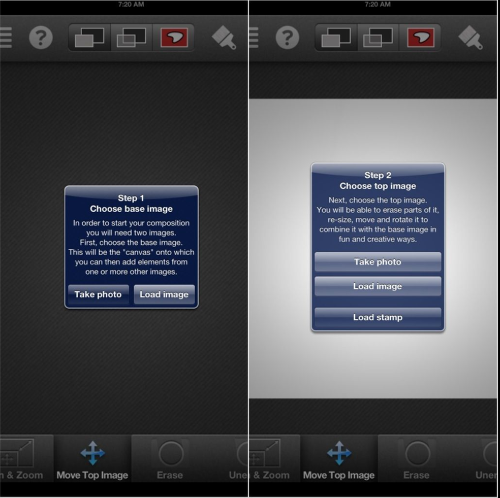
Juxtaposer is a speciality app specifically for masking out (cutting out) a section of one image and layering it to the image below. It has a powerful set of brushes in various sizes and opacity strength.
Brushes:
White: good for masking out edges comes in two strengths-
Hard white
Soft white
Grey: the grey brushes maintain some translucency so are best for blending the edges of two images together also in two strengths-
Hard grey
Soft grey
Tools
Pan and zoom
Move top image
Erase
Unerase
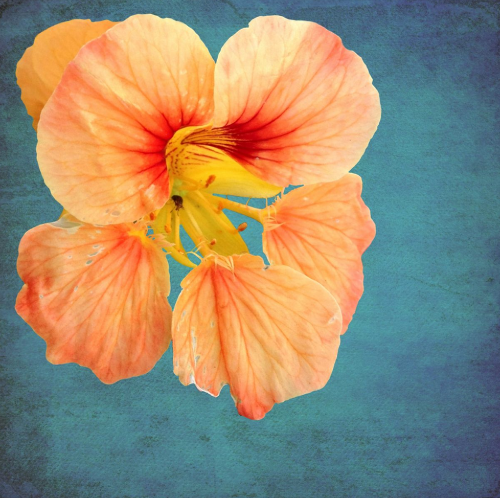
To start load your base image, then load your top image, which is the image you want to mask out. I have chosen a flower to work with. I tend to work with the softer white brush. You can change the size of the brush using the slider but I prefer to zoom in and out to change the size of the brush.
Step 2
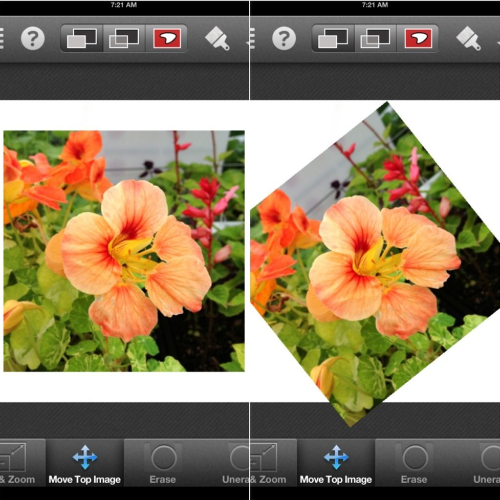
Start masking the edges of your image, zoom in and carefully run the brush along the edges. Depending on how intricate the image is this step can be very time consuming but it is worth it to take your time. You can save the session and come back to it later if you don’t get the masking complete in one sitting.
Step 3
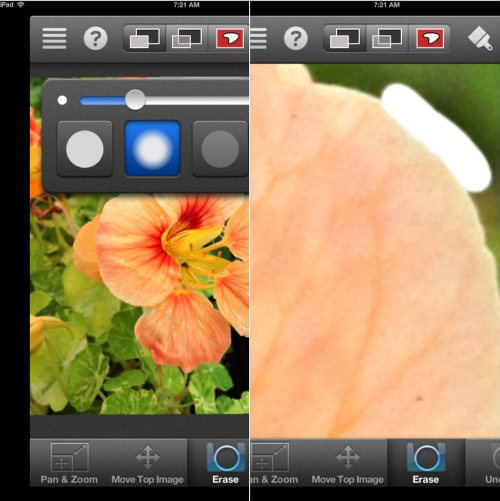
When you have done the edges you can zoom out and work at removing the rest of the back ground. I often choose the hard edge white brush for this step.
Step 4
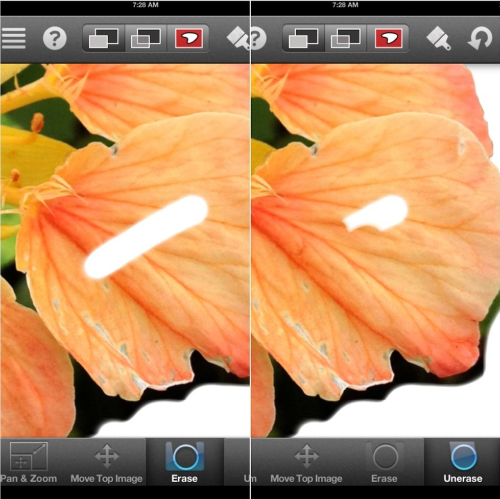
After you have finished your masking it is a good idea to move the masked image around a bit to just to make sure you have not missed any of the top image background that may be camouflaged by the base, this is particularly important if some of top image background is the same color as your base image.
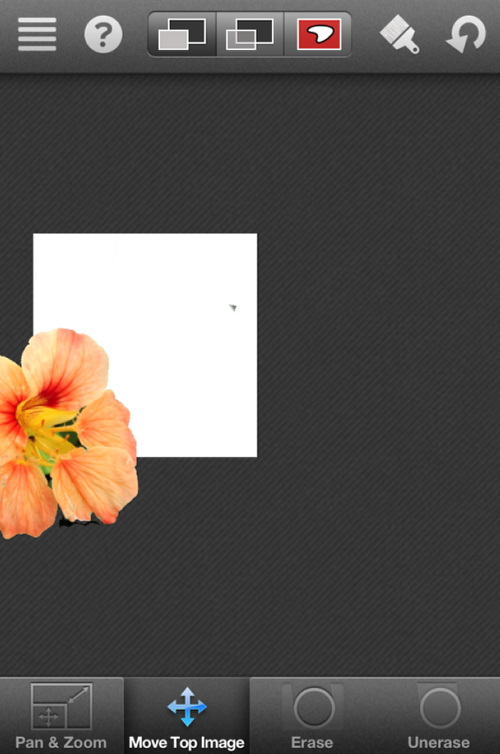
Step 5
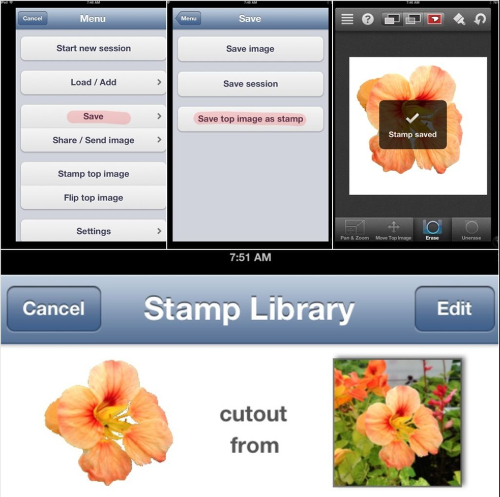
When I am finished with my mask I save it as a stamp. I do this even if I don’t think I will use the image again because it acts as a back up. Juxtaposer unfortunately, at the moment, does not let you go back through layers so if you are creating a heavily collaged image and decide something a few steps back needs to be moved you have no choice but to start over, saving stamps is essential to avoid having to re-mask. You can add as many top images as you like allowing for some interesting and detailed collages.
Step 6
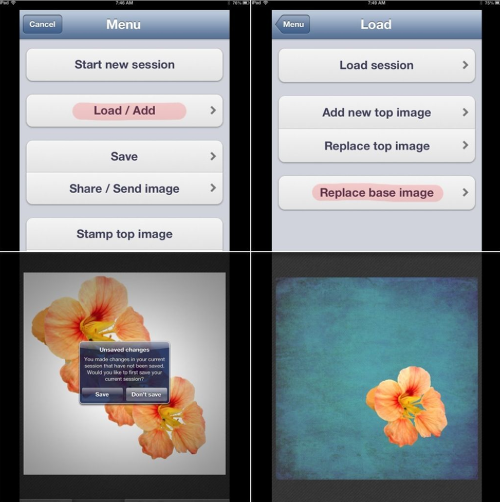
To add more images to your collage you navigate to the add new top image section in the menu. You can add from your saved stamp menu or load a new photo from your camera roll and mask it out.
If you want to blend two images together this is where your grey brushes come into their own. Zoom in and adjust the brush slider then gently blend using erase and unerase till you are happy with the seam between the two images.
Step 7
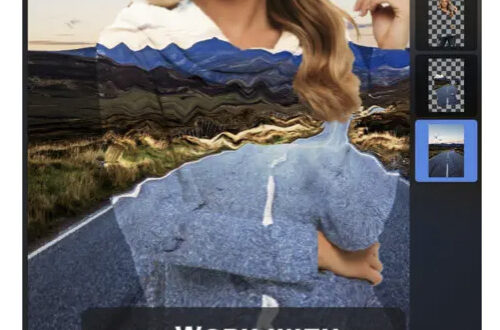
Juxtaposer allows you to flip images, resize images and rotate images giving you full control over image placement. At any stage in the project you can replace the base image but be aware it will only retain your current top image. Any images collaged becomes part of the base image when a new top image is added so everything under the current top image will be replaced. Juxtaposer will ask you if you want to save the current session before replacing the base image, I suggest saving in case the new base is not what you want. It is then easy to recall the saved session.
Juxtaposer is in planning stages for it’s next update and is asking for user input, so hopefully there will be some new exciting additions to look forward to in the future. Personally I am hoping for the ability to save at high input resolution ;)’.

Joanne Carter
Joanne Carter is a British photography journalist, editor, curator, and the founder of *TheAppWhisperer.com*, one of the world’s leading platforms dedicated to mobile photography and art. Since its launch in 2009, TheAppWhisperer has become an international hub for artists of all levels to discover, learn, exhibit, and engage with contemporary photographic practice.Built on principles of inclusivity, accessibility, and artistic excellence, Joanne has spent almost two decades championing mobile photography as a serious artistic medium. Through interviews, critical essays, exhibitions, competitions, and education, she has helped shape and document the evolution of mobile art on a global scale.Her work has taken her internationally, lecturing on photography and mobile art at institutions and events including the Museum of Art in Seoul, South Korea, alongside appearances in the UK and Europe. She has served as a juror for international photography and mobile art awards across Portugal, Canada, the United States, South Korea, Italy, and the UK.Joanne is also the founder of *TheAppWhispererPrintSales.com*, one of the first online galleries dedicated exclusively to collectible mobile art, connecting artists with collectors across Europe, the United States, and Asia.Before founding TheAppWhisperer, Joanne worked extensively in print journalism and photographic publishing, including roles at a paparazzi photo agency and as deputy editor of a leading photography magazine. Her freelance journalism, criticism, and commentary have been published widely in both the UK and the US, with bylines in *The Times*, *The Sunday Times*, *The Guardian*, *Popular Photography*, *NikonPro*, *DPReview*, *Which?*, *Vogue Italia*, *LensCulture*, the *BBC*, and more recently, the *Financial Times*, where her published letters on photography continue to contribute to wider conversations around the medium.Alongside her editorial and curatorial work, Joanne’s own photographic practice has been exhibited internationally across the UK, Europe, South Korea, and the United States. Her work increasingly explores themes of grief, loss, death, memory, and the body.Her current research interests centre on grief, death, and poverty, with forthcoming postgraduate study leading towards doctoral research in these areas.Joanne is currently developing new long-form writing and photographic projects and is available for commissions, editorial projects, speaking engagements, and collaborations.Contact: joannetheappwhisperer@gmail.com)

26 Comments
Janine Graf
Wonderful Mel! I absolutely ADORE Juxtaposer! It’s definitely my fave app for collage work. Will be interesting to see their update! 😀
Mel Harrison
You are a JuxtaQueen Janine!
Richard Gray (@rugfoot)
Thanks for that Mel. Really good tutorial. I keep on meaning to try out some collaging but haven’t really got to grips with Juxtaposer. As an expert, what would you say the advantages of Juxtaposer are over Blender?
Mel Harrison
Richard, the standout feature of juxtaposer is the ability to save stamps and recall them for use later. On a working level though I find the masking brushes in juxtaposer are smoother to work with and the two extra opacities do come in handy, I often wish blender had a middle ground tool.
I find the tools in blender can be slightly less responsive and you have to work harder to mask fiddly areas so I use it more to blend different edits of the same image or when I want to use specific blending modes. For adding new elements to images juxtaposer does a much better job.
Mel x
David
Great article, Mel. I’ve used Blender and now Layover…but not so much Juxtaposer. Time to revisit this app!
Steve H
Excellent!
Catherine
Excellent tutorial Mel, and one of my fave apps! Really excited about the update… 🙂
Mel Harrison
Thanks Dave, Steve and Cat xx
Egmont van Dyck
I really appreciated the tutorial as well as learning about a new app I did not existed. I will especially look forward to next week since I have Blender and have only been scratching its surface.
Thank you Joanne for engaging Mel or we all would have missed this.
Mel Harrison
Thank you Egmont what a lovely thing to say. I hope I do Blender justice!
Mel
Ayub
Great tutorial. Thank you.
Mel Harrison
Thank you 😀
Veevs
Wonderful tutorial Mel, thank you!! 🙂
Mel Harrison
Thanks Veevs xx
Laurence Zankowski
Mel,
Do not know if it is possible yet at developer level, If juxtaposer could have a global selection tool that allows a range of pixel contraction / expansion with a feathering modality it would go a long way to image composition and effect. Then as I was thinking about this, my thoughts turned to a what if they could also create a very limited enhanced ray tracing / specularity control for edges.
Sorry, this comment really has nothing to do with your tutorial. Just got me on a what if track…
Be well
Laurence
Mel Harrison
Certainly worth approaching them with Laurence, I am sure they would appreciate the suggestion. 😀
Delta
Wonderful tutorial Mel – I need use Juxta more – and now I will (again).
Mel Harrison
Can’t wait to see what you do with it Delta <3
Mel Harrison
I use the iPhone version on my iPad without any problems. Sorry if I am missing the obvious but what would the difference be between the iPad and iPhone version?
Carolyn Hall Young
Great one, thank you!
Can you explain the difference between Juxtaposer and Superimpose? I tend to use other apps for layering and collaging, but notice that these two apps are mentioned often.
Original output resolution is important to me.
I agree with David — you have nudged me to revisit Juxtaposer, too.
Mel Harrison
Carolyn I really need to have a good play with superimpose. I am afraid I was a little unfair with it when I tried it out and expected it to be a Juxtaposer clone which it’s not so I do have to learn how to use it properly.
Robert Lancaster
Thanks for the fantastic tutorial Mel!
I have recently been in contact with the devs and they assure me that an iPad version (whether or not it will be universal I do not know) is in the pipeline.
I cannot wait.
Mel Harrison
Thanks Robert did they mention what the advantage of the ipad version would be over using the iphone version on the ipad?
Richard Gray (@rugfoot)
I’ve been trying out this Mel and have a couple of questions: 1) if the stamp you apply is smaller than the base image, you see the outline of the edge of the frame. Is there anyway of making it completely invisible? 2) Is there any way of making the stamp partially transparent as you can do in Blender? Thanks for any pointers.
Mel Harrison
hmmm Richard you have me stumped I can’t recall experiencing what you have described would you be able to send me some screen shots to MahoganyTurtle@mobitog.com and I will look into it for you.
Egmont van Dyck
Thank you for a wonderful tutorial.
I cannot understand why app developers continue to release post production applications that do not support full resolution for the latest version of the iPhone. I would have considered this program but since it is not full resolution, a sale has been lost.