Switching On Automatic Downloads In The iTunes Store
iTunes 10.3 and iOS 4.3.3 or later enable you to automatically download purchases from the App Store, iBookstore, or iTunes Store. You can use Automatic Downloads to instantly download purchases to your other computers and devices.
Note: Downloading of past purchases and App updates are not supported by Automatic Downloads.
We’ve put together a short tutorial to help you set this up both on your mobile device and your Mac, read more below…
Authorize
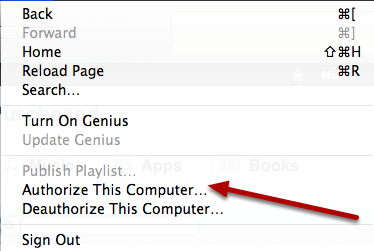
First you will need to open iTunes on your Mac. Make sure the computer you are using has been authorized to play nicely with your Apple ID. To do this, go to Store then Authorize This Computer.
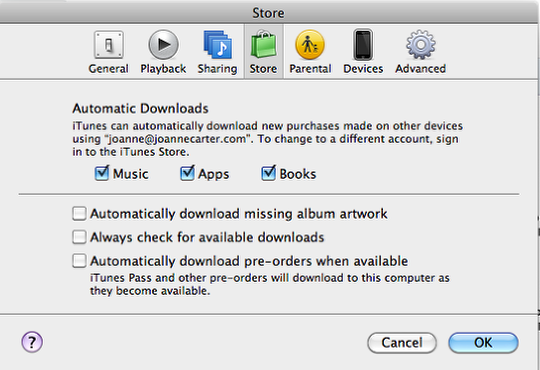
Then all you need to do is within iTunes select Preferences and click on the Store tab. From there you can enable Automatic Downloads for either Music, Apps or Books or all.
Mobile Mode
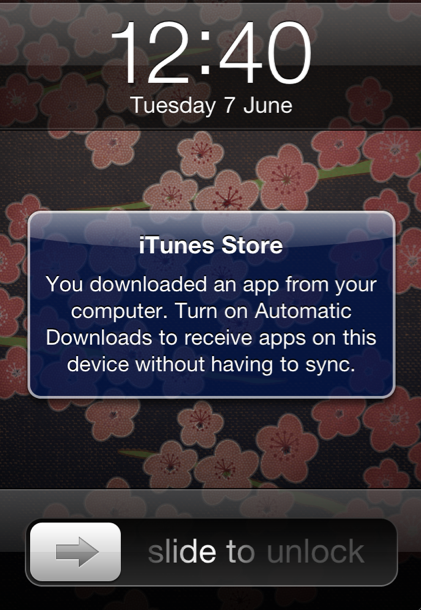
It is now possible for each app or song that you have purchased via iTunes to be automatically downloaded to your iPad, iPhone or iPod Touch.
To enable this feature you need to select the Settings tab within each of your mobile devices and then select the Store settings from the list.
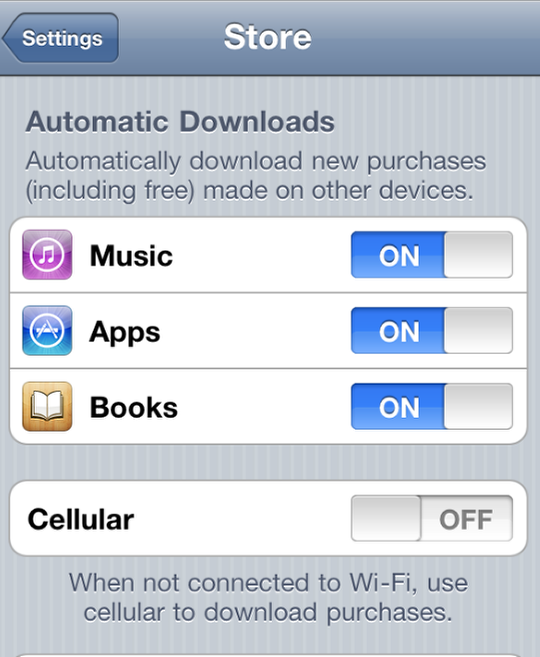
Then just enable the types of purchases you want automatically downloaded to your mobile device.
This download process will occur only with your new purchases. By default, the automatic downloads will occur only over WiFi, but you can enable to also have it done over 3G access as well. The automatic download will take place even if the other device is in sleep mode.
However, if you download an iPad-compatible only app, it will not automatically download to your iPhone or iPod touch.
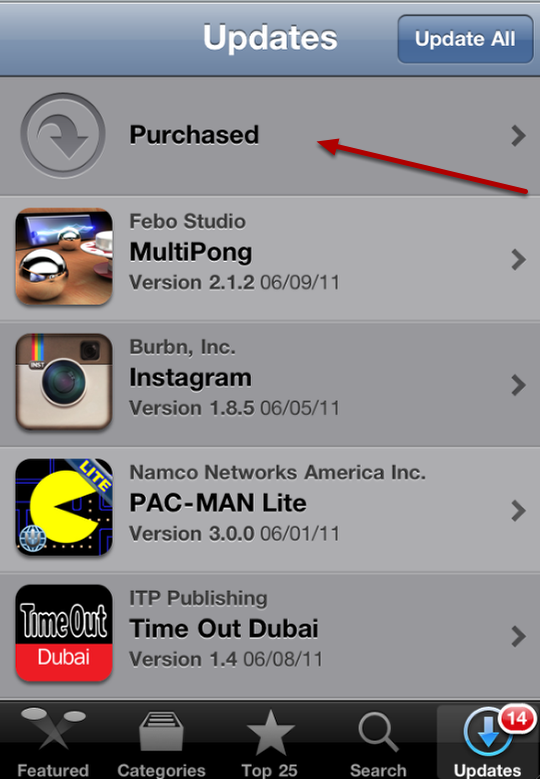
It is possible to access all your purchased apps through the App Store application on your mobile device.
To do this, just go to the App Store app on your mobile device and select the Updates tab. The select the Purchased tab at the top of the selection.
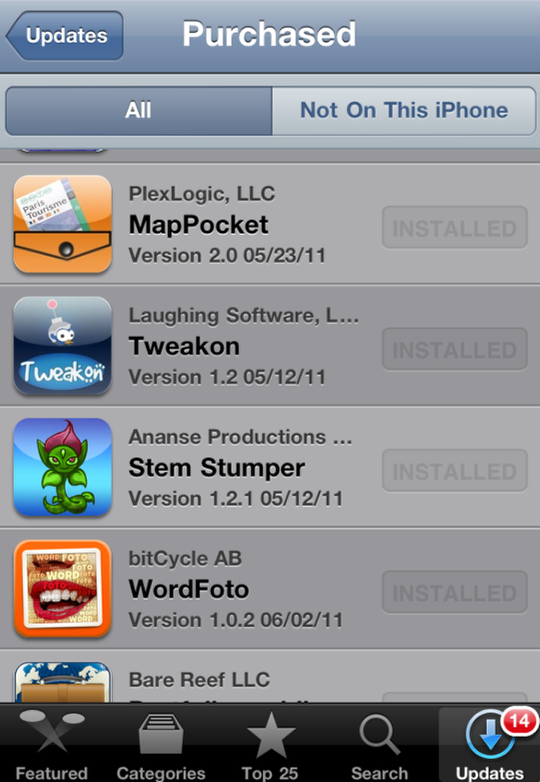
You will then be able to see all the apps you have purchased that may or may not be on this device. The above screen grab shows apps that are already on this particular iPhone. The screen grab below shows apps that have been purchased but are not currently on this device.
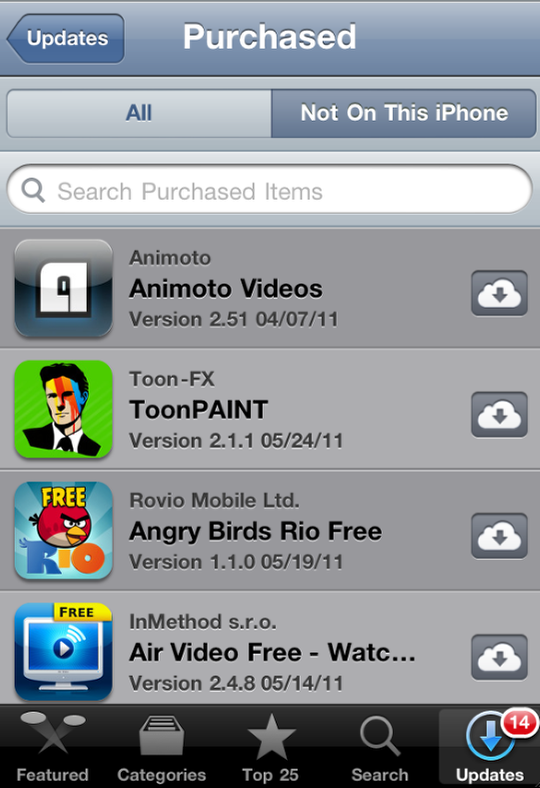
To download an app to your mobile device that you have previously purchased, just select the iCloud and this will happen automatically, although you may be prompted to put in your Apple ID password again.

Joanne Carter
Joanne Carter is a British photographer, photography journalist, editor and curator and the founder and editorial director of TheAppWhisperer.com, an independent international photography publication established in 2009.Her journalism, criticism and commentary have appeared in The Times, The Sunday Times, The Guardian, Financial Times, BBC, Vogue Italia, LensCulture, Popular Photography, Android Magazine, NikonPro, DPReview, Which Digital Camera and Which Camera. She has lectured internationally on photography and mobile art, served as a juror for international photography awards, and exhibited her own photographic work across the UK, Europe, South Korea and the United States.Alongside her editorial work, Joanne's photographic and postgraduate research explores death, grief, memory, representation and social inequality through contemporary photography, participatory practice and visual research methods, with the longer-term aim of developing this work through doctoral research.Through TheAppWhisperer, she continues to publish independent photography journalism spanning contemporary photographic practice, mobile imaging, photographic apps, computational photography and emerging imaging technologies.Joanne is available for editorial commissions, photography projects, judging, curatorial work, speaking engagements, consultancy and selected collaborations.