App Art School
AppArt School – Top 10 iOS Slow Shutter Apps
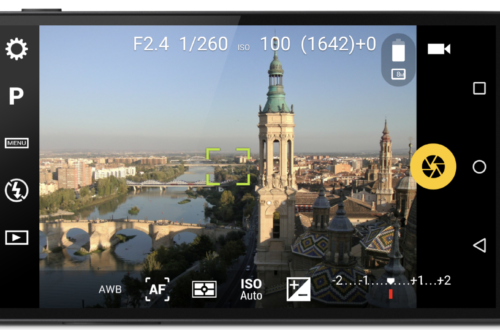
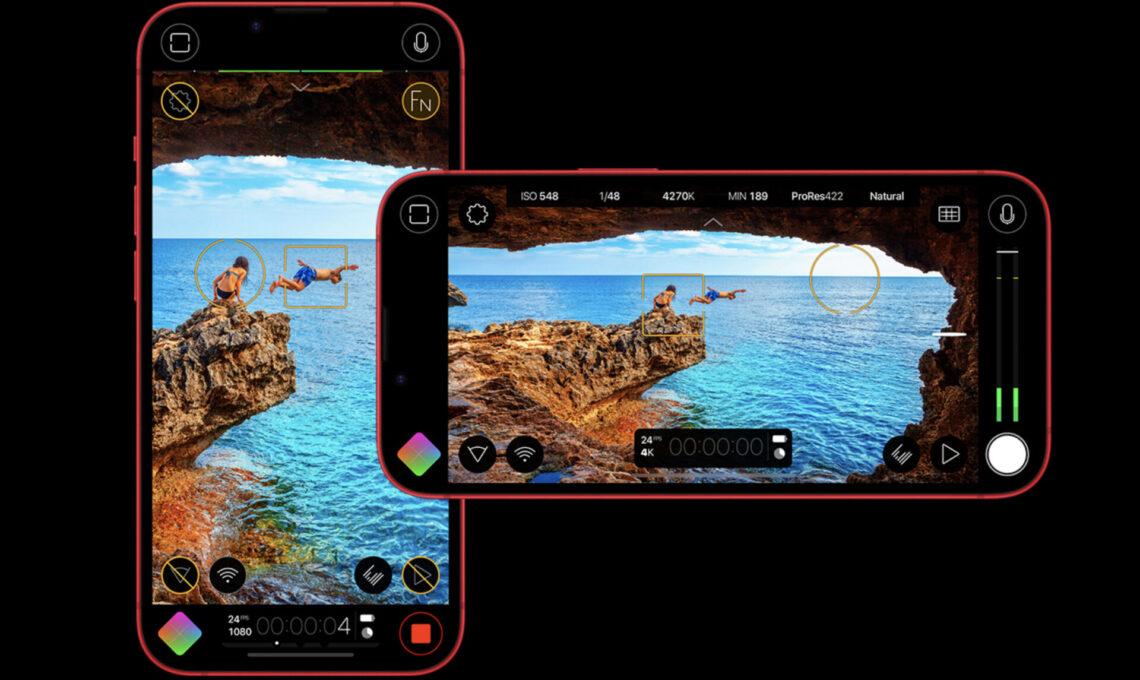
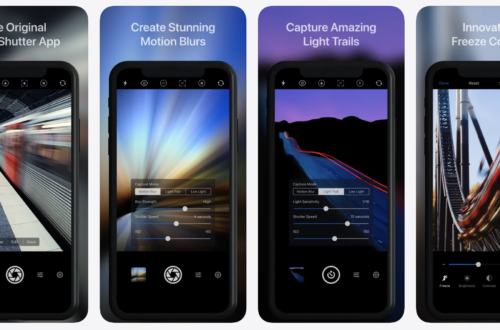
AppArt School – Top 10 iOS Slow Shutter Apps An iOS slow shutter app is designed to simulate the effect of using a slow shutter speed on a traditional camera. Normally, when you take a photo with a fast shutter speed, it freezes the motion and captures a sharp image. However, when you use a slow shutter speed, it allows the camera’s sensor to capture light over a longer period, resulting in unique effects. Here’s what an iOS slow shutter app typically offers: Long Exposure Photography: The app allows you to capture long exposure photos using your iPhone’s camera. This means you can capture scenes with moving subjects, such as…
AppArt School – How to Get Creative with the iColorama Painting App
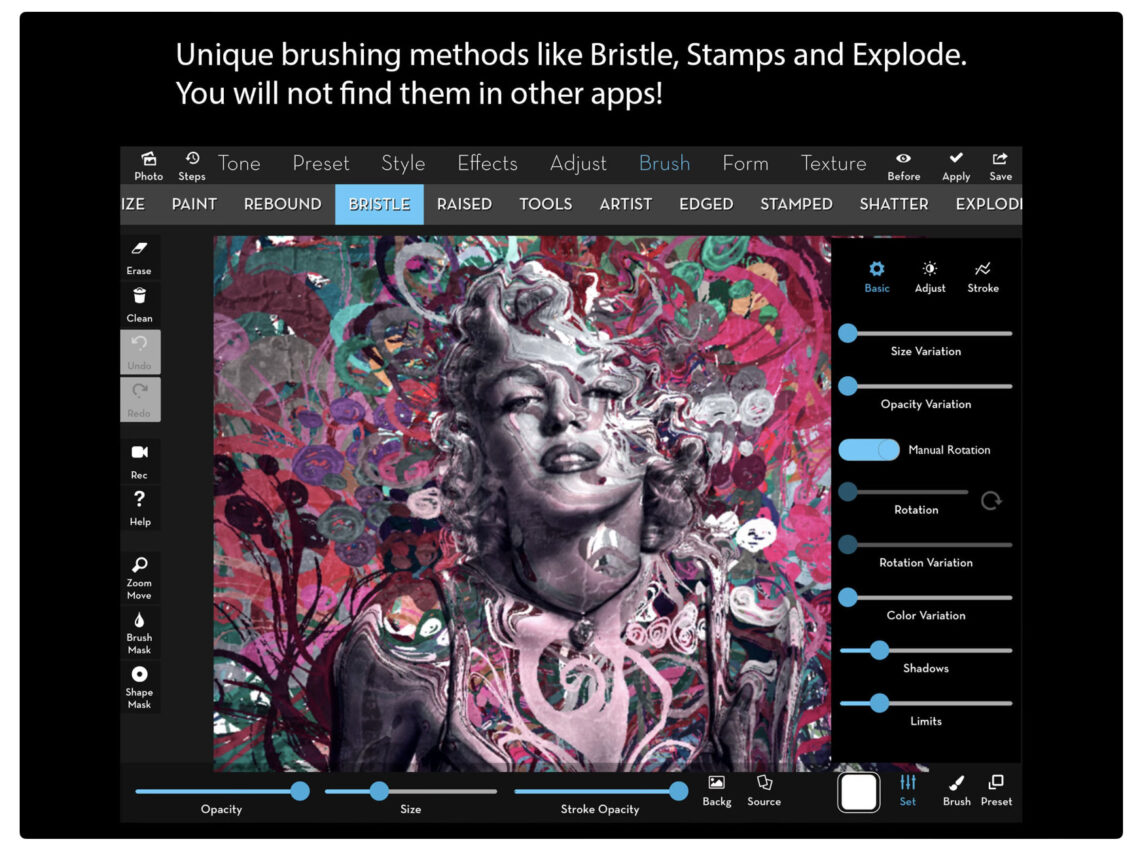
AppArt School – AppArt School – How to Get Creative with the iColorama Painting App To get creative with the iColorama painting app, you can explore various features and techniques offered by the app. Here are some tips to help you unleash your creativity: Familiarise Yourself with the Tools: Take some time to explore the different painting tools available in iColorama. Experiment with brushes, pens, and other artistic tools to understand their effects and variations. Play with Brush Settings: Adjust the size, opacity, and hardness of the brushes to create different strokes and textures. Experiment with different brush settings to achieve the desired artistic effect. Layering and Blending: Take advantage…
AppArt School – Ten iOS Painting Apps that offer Tutorials, Community Features, or Resources to Help Improve your Painting Skills
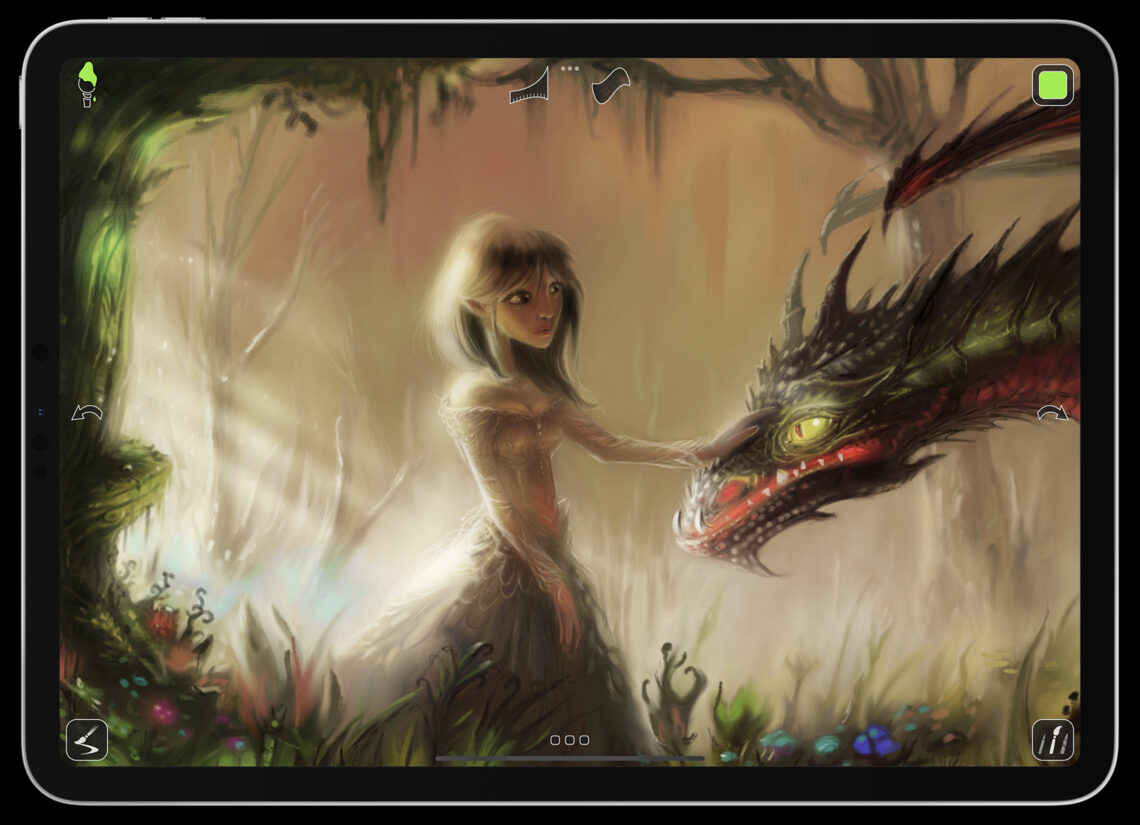
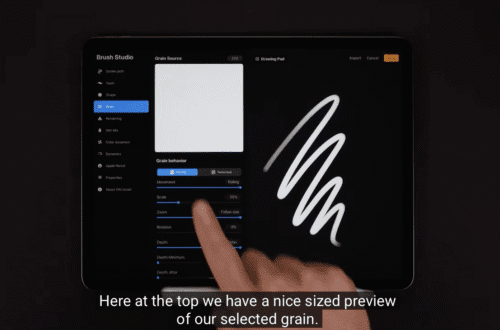
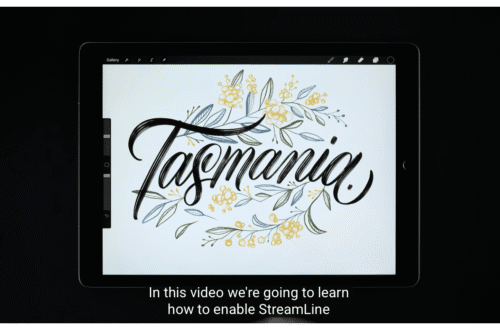
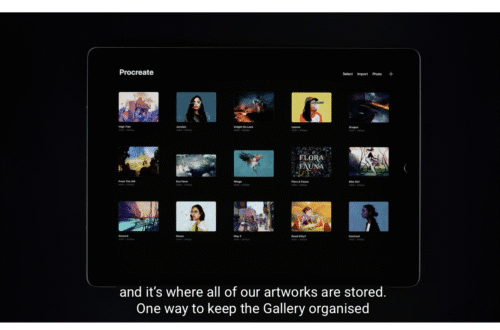
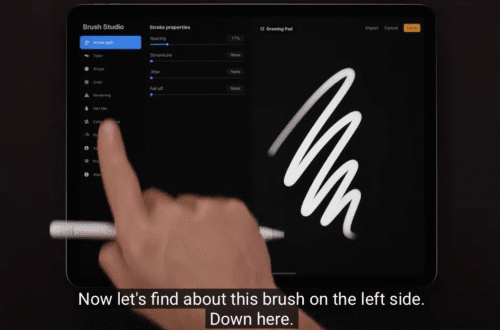
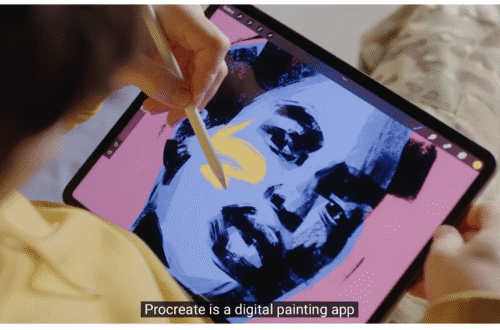
AppArt School – Ten iOS Painting Apps that offer Tutorials, Community Features, or Resources to Help Improve your Painting Skills Procreate: Procreate is a highly popular and feature-rich painting app that provides a vast library of tutorials, both within the app and on their official website. They offer step-by-step guides, video tutorials, and an active community where artists can share their work and receive feedback. Autodesk SketchBook: SketchBook offers a variety of tutorials and learning resources to help artists enhance their skills. Their extensive tutorial library covers different techniques and workflows, and they have a community platform where you can connect with fellow artists and seek advice. Adobe Fresco: Adobe…
AppArt School – What are the Best Ten iOS Art Apps for Digital Painting and Illustration?
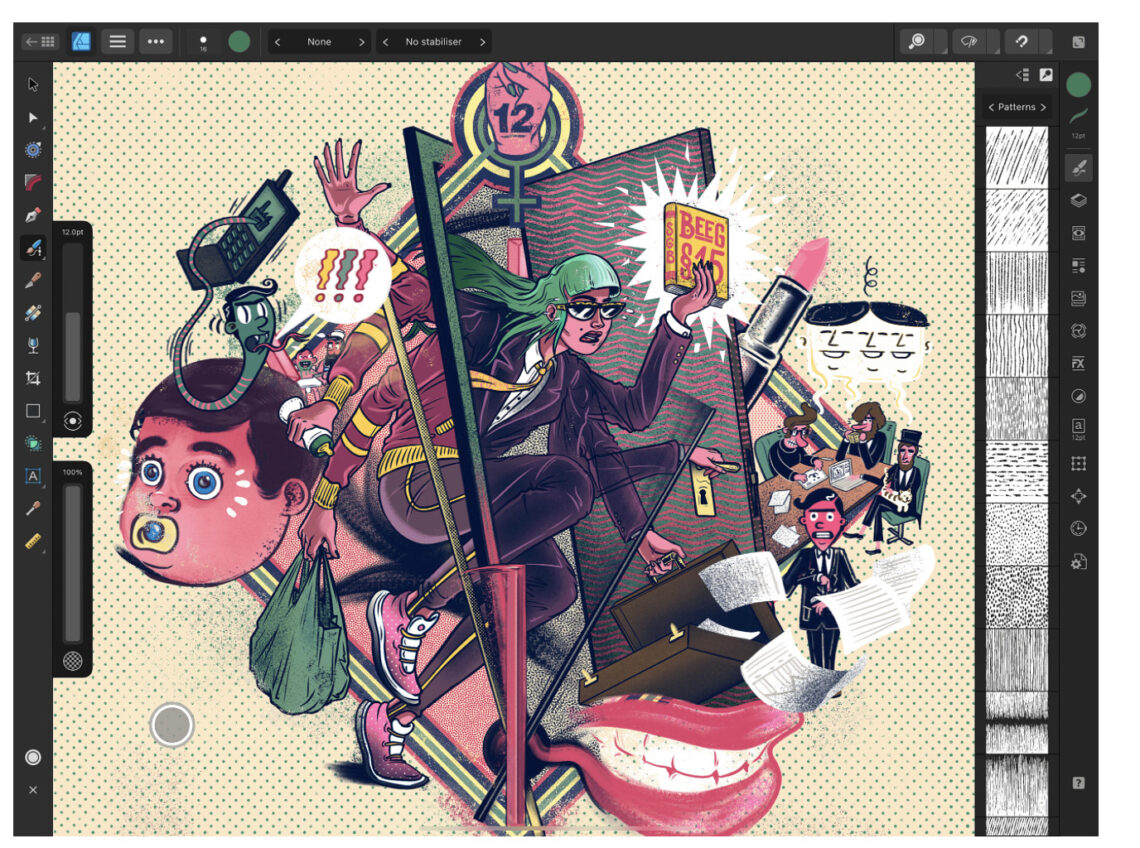
AppArt School – What are the best ten iOS art apps for digital painting and illustration? Here are ten highly regarded iOS art apps for digital painting and illustration: Procreate: Procreate is a powerful and feature-rich app that offers an extensive range of tools and brushes. It provides a fluid and responsive drawing experience with advanced layering, blending modes, and customizable brushes. Adobe Fresco: Adobe Fresco combines the feel of traditional painting with the versatility of digital tools. It offers realistic brush options, intuitive interface, and seamless integration with other Adobe Creative Cloud apps. Autodesk Sketchbook: Autodesk Sketchbook is a professional-grade app that provides a wide variety of brushes and…
AppArt School – Ten iOS Video Apps to Enhance Your Instagram Posts
AppArt School – Ten iOS Video Apps to Enhance Your Instagram Posts If you’re specifically looking for Apple iOS video apps to enhance your Instagram posts, here are ten popular options: InShot: InShot is a versatile video editing app that offers a wide range of features such as trimming, cutting, merging, applying filters, adding music, text, and stickers to your videos. It’s user-friendly and provides various editing tools to create engaging content. Adobe Premiere Rush: Adobe Premiere Rush is a powerful video editing app that provides professional-grade editing tools in a user-friendly interface. It allows you to edit videos, add transitions, apply color filters, and even edit audio. It seamlessly…
AppArt School – How to use the Afterlight app to improve your Street Photography
AppArt School – How to use the Afterlight app to improve your Street Photography Here are 10 steps to help you use the Afterlight app to improve your street photography: Open Afterlight and import your street photography image. Adjust the brightness, contrast, and exposure of the image using the app’s basic editing tools. This can help bring out the details and colors in your street photography. Use the app’s sharpening tool to enhance the details in your image. This can help make the street scenes appear sharper and more detailed. Experiment with the app’s various filters to find one that suits your street photography. You can adjust the strength of…
AppArt School – Top 10 iOS Apps to Make your Instagram Posts Great
AppArt School – Ten iOS apps that can aid in creating and enhancing Instagram posts: Instagram: The first and most important app for Instagram users is the Instagram app itself. It allows you to post photos and videos, engage with other users, and stay up to date with the latest trends and hashtags. Canva: Canva is a graphic design app that offers a range of templates and design elements for creating professional-looking visuals. You can use it to create custom images and graphics for your Instagram posts. VSCO: VSCO is a popular photo editing app that offers advanced editing tools and filters for fine-tuning color, exposure, and tone. It also…
AppArt School – Top 10 iOS Apps for Advanced Mobile Photographers
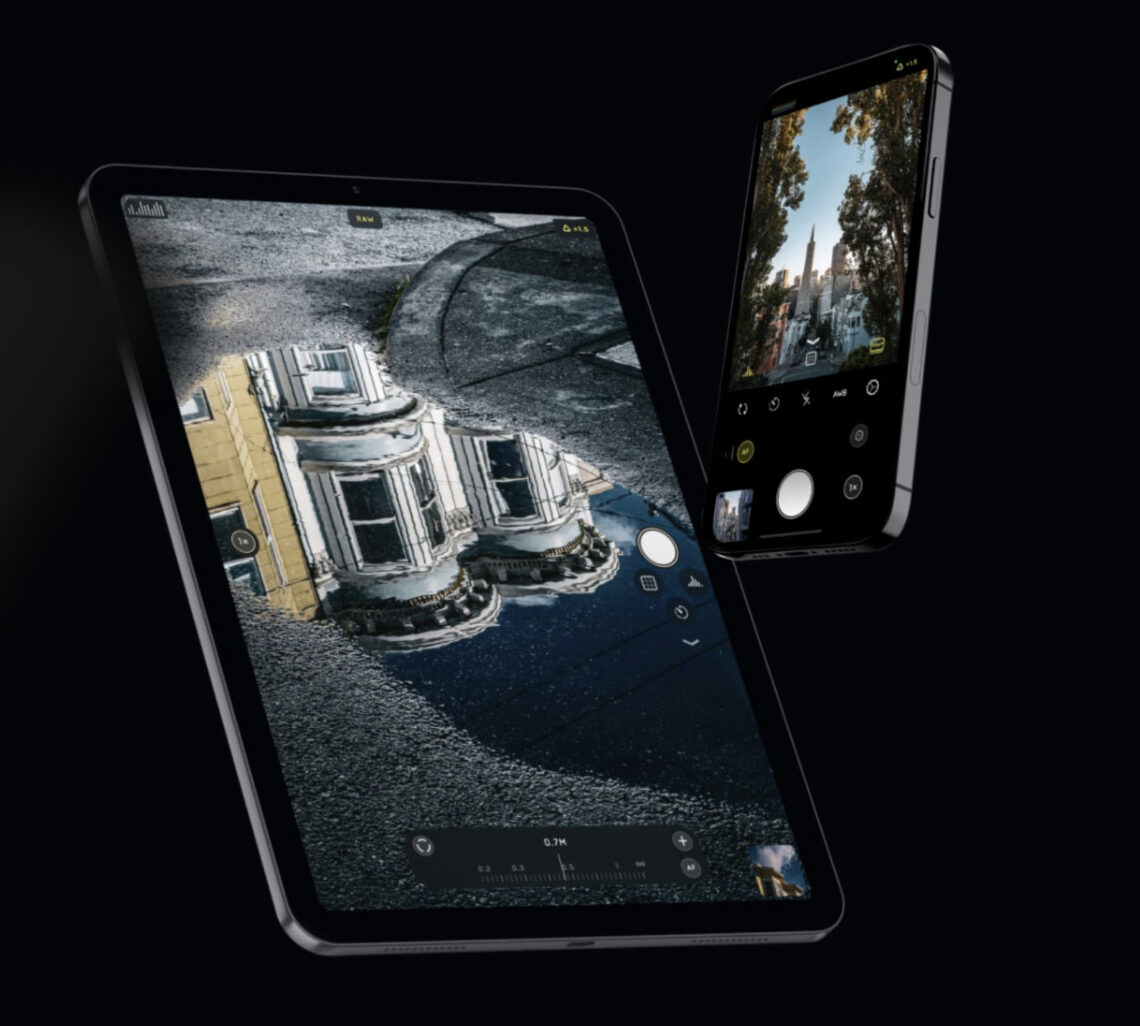
AppArt School – Top 10 iOS Apps for Advanced Mobile Photographers Here are ten iOS photo apps that are popular among advanced mobile photographers: Lightroom: Adobe’s photo editing app allows for advanced editing and organization of photos. It features advanced color grading tools, presets, and the ability to sync edits across devices. VSCO: This app offers advanced photo editing tools and filters for fine-tuning color, exposure, and tone. It also features a built-in camera app for capturing high-quality images. Snapseed: A powerful photo editing app that offers advanced features like selective adjustments, masking, and healing tools. ProCamera: A high-quality camera app that offers advanced control over exposure, focus, and white…
AppArt School – 10 Good iOS Photo Editing Apps for Beginners
AppArt School – 10 Good iOS Photo Editing Apps for Beginners There are many photo editing apps available for beginners, each with its own unique features and user interface. Here are some popular options: Snapseed: This is a free photo editing app developed by Google that offers a wide range of editing tools and filters. VSCO: VSCO is a popular photo editing app that offers a wide range of filters and editing tools. It also has a built-in camera app, making it easy to take and edit photos all in one place. Adobe Lightroom: Adobe Lightroom is a powerful photo editing app that is designed for both beginners and professionals.…
AppArt School – What are the best photo storage apps for backing up my photos?
AppArt School – What are the best photo storage apps for backing up my photos? There are several photo storage apps available for backing up your photos, each with its own features and benefits. Here are some of the best options: Google Photos: This is a popular photo storage app that allows you to back up unlimited photos and videos for free, as long as you agree to have them compressed to a certain size. It also has a search function that can identify objects, people, and places in your photos. iCloud Photos: If you’re an Apple user, iCloud Photos is a great option. It automatically backs up your photos…