APPart
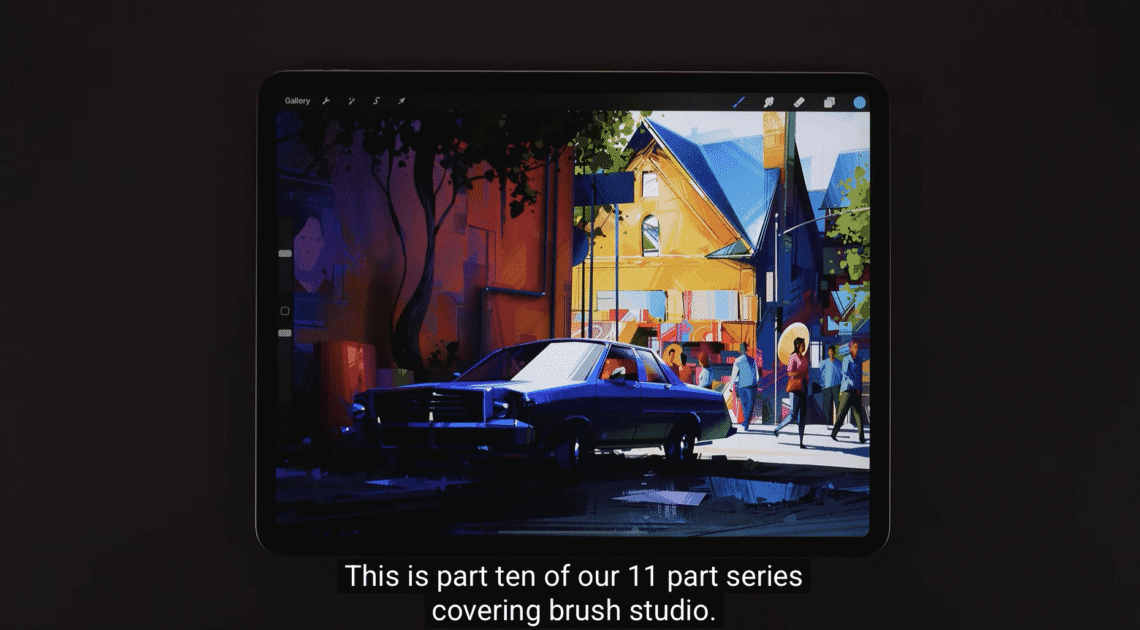
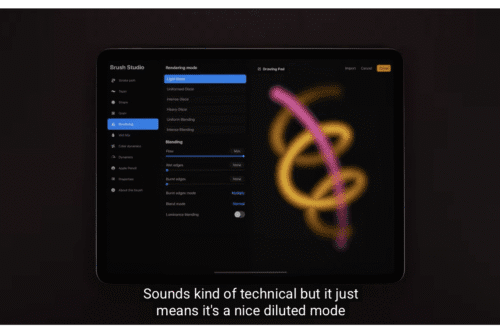
Procreate – Brush Studio: Properties
Procreate – Brush Studio: Properties Learn everything you need to create and edit brushes in Procreate. Please support us TheAppWhisperer has always had a dual mission: to promote the most talented mobile artists of the day and to support ambitious, interested viewers worldwide. As the years pass, TheAppWhisperer has gained readers and viewers and has found new venues for that exchange. All this work thrives with the support of our community. Your support helps protect our independence, and we can keep delivering open, global promotion of mobile artists. Every contribution, however big or small, is valuable for our future. Click here to help us
Procreate – Procreate Brush Studio: About This Brush
Procreate – Procreate Brush Studio: About This Brush Please support us TheAppWhisperer has always had a dual mission: to promote the most talented mobile artists of the day and to support ambitious, interested viewers worldwide. As the years pass, TheAppWhisperer has gained readers and viewers and has found new venues for that exchange. All this work thrives with the support of our community. Your support helps protect our independence, and we can keep delivering open, global promotion of mobile artists. Every contribution, however big or small, is valuable for our future. Click here to help us
Procreate – How to use Chromatic Aberration in Procreate
Procreate – How to use Chromatic Aberration in Procreate Generate perspective-based and multi-directional Chromatic Aberration effects quickly and easily. Please support us TheAppWhisperer has always had a dual mission: to promote the most talented mobile artists of the day and to support ambitious, interested viewers worldwide. As the years pass, TheAppWhisperer has gained readers and viewers and has found new venues for that exchange. All this work thrives with the support of our community. Your support helps protect our independence, and we can keep delivering open, global promotion of mobile artists. Every contribution, however big or small, is valuable for our future. Click here to help us
Procreate – How to adjust the Transform Bounding Box in Procreate
Procreate – How to adjust the Transform Bounding Box in Procreate Discover how to use the Bounding Box Adjust to scale and stretch from any orientation. Please support us TheAppWhisperer has always had a dual mission: to promote the most talented mobile artists of the day and to support ambitious, interested viewers worldwide. As the years pass, TheAppWhisperer has gained readers and viewers and has found new venues for that exchange. All this work thrives with the support of our community. Your support helps protect our independence, and we can keep delivering open, global promotion of mobile artists. Every contribution, however big or small, is valuable for our future. Click here to…
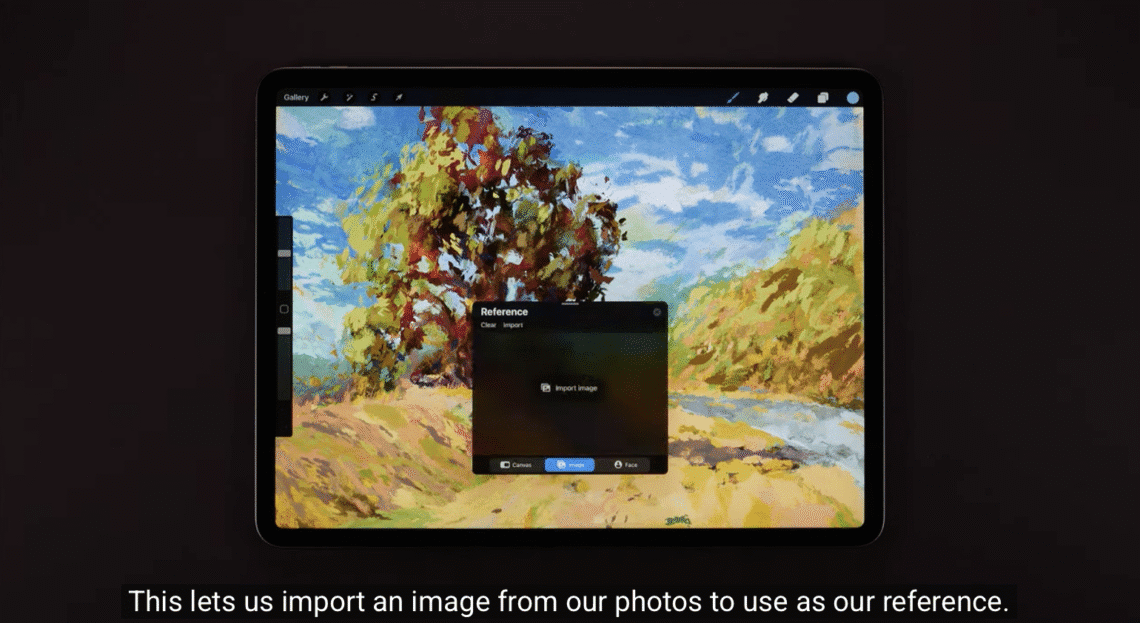
Procreate – How to use Reference Companion in Procreate
Procreate – How to use Reference Companion in Procreate Reference images, view your canvas from another perspective and pick colours all from your Reference Companion. Please support us TheAppWhisperer has always had a dual mission: to promote the most talented mobile artists of the day and to support ambitious, interested viewers worldwide. As the years pass, TheAppWhisperer has gained readers and viewers and has found new venues for that exchange. All this work thrives with the support of our community. Your support helps protect our independence, and we can keep delivering open, global promotion of mobile artists. Every contribution, however big or small, is valuable for our future. Click here to help…
Procreate – How to utilise Freeform Transform in Procreate
Procreate – How to utilise Freeform Transform in Procreate Discover the strength of Freeform Transform in Procreate. Please support us TheAppWhisperer has always had a dual mission: to promote the most talented mobile artists of the day and to support ambitious, interested viewers worldwide. As the years pass, TheAppWhisperer has gained readers and viewers and has found new venues for that exchange. All this work thrives with the support of our community. Your support helps protect our independence, and we can keep delivering open, global promotion of mobile artists. Every contribution, however big or small, is valuable for our future. Click here to help us
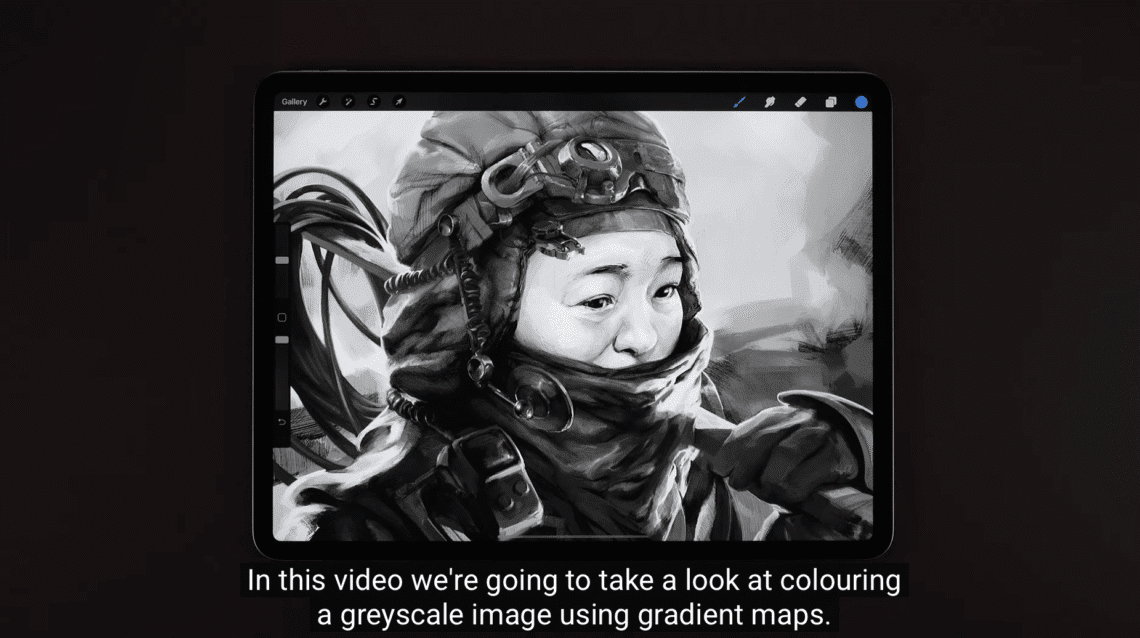
Procreate – How to use Gradient Maps in Procreate
Procreate – How to use Gradient Maps in Procreate Understand and learn how to use Colour Gradients to their maximum potential. Please support us TheAppWhisperer has always had a dual mission: to promote the most talented mobile artists of the day and to support ambitious, interested viewers worldwide. As the years pass, TheAppWhisperer has gained readers and viewers and has found new venues for that exchange. All this work thrives with the support of our community. Your support helps protect our independence, and we can keep delivering open, global promotion of mobile artists. Every contribution, however big or small, is valuable for our future. Click here to help us
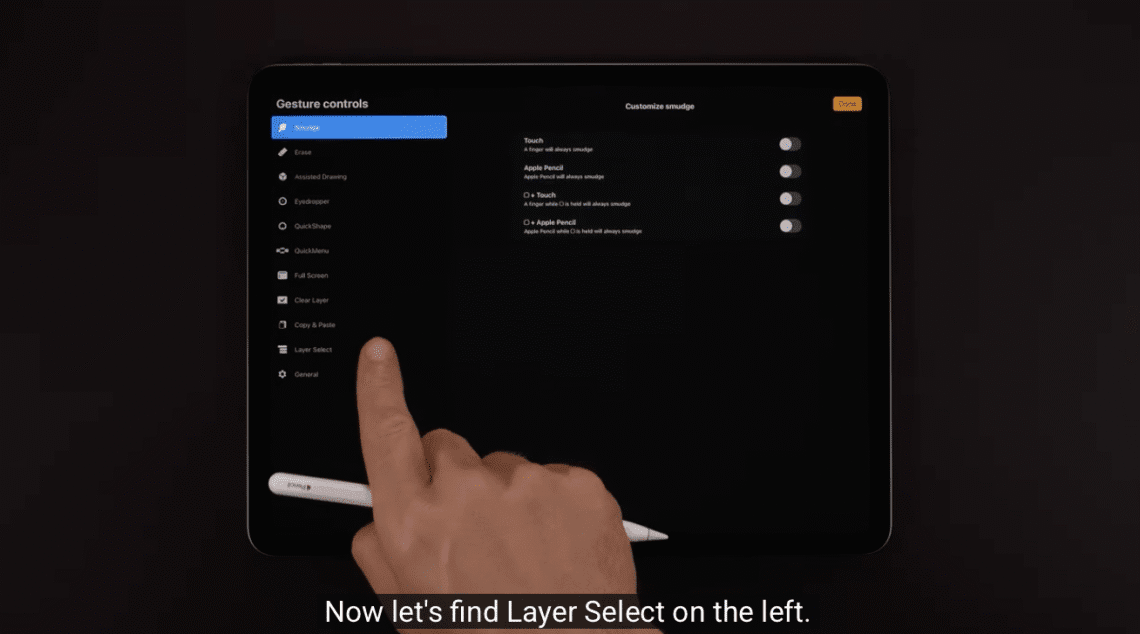
Procreate – How to use Layer Select in Procreate
Procreate – How to use Layer Select in Procreate Find layers easier and speed up your workflow with the handy Layer Select shortcut. Please support us TheAppWhisperer has always had a dual mission: to promote the most talented mobile artists of the day and to support ambitious, interested viewers worldwide. As the years pass, TheAppWhisperer has gained readers and viewers and has found new venues for that exchange. All this work thrives with the support of our community. Your support helps protect our independence, and we can keep delivering open, global promotion of mobile artists. Every contribution, however big or small, is valuable for our future. Click here to help…
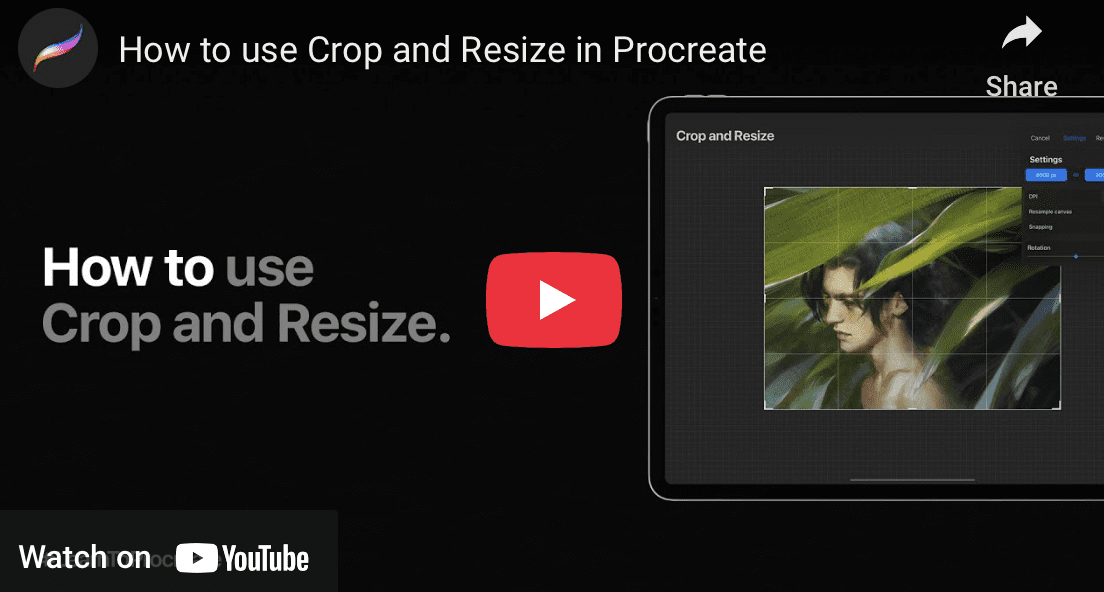
Procreate – How to use Crop and Resize in Procreate
Procreate – How to use Crop and Resize in Procreate Master how to Crop and Resize your artwork for digital and printing purposes. Please support us TheAppWhisperer has always had a dual mission: to promote the most talented mobile artists of the day and to support ambitious, interested viewers worldwide. As the years pass, TheAppWhisperer has gained readers and viewers and has found new venues for that exchange. All this work thrives with the support of our community. Your support helps protect our independence, and we can keep delivering open, global promotion of mobile artists. Every contribution, however big or small, is valuable for our future. Click here to help us
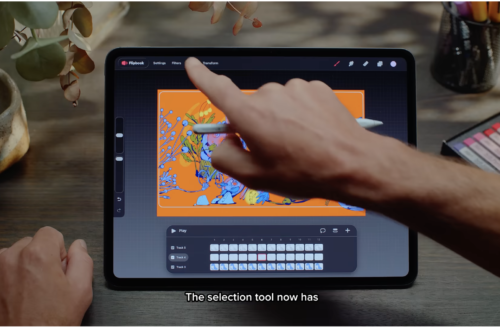
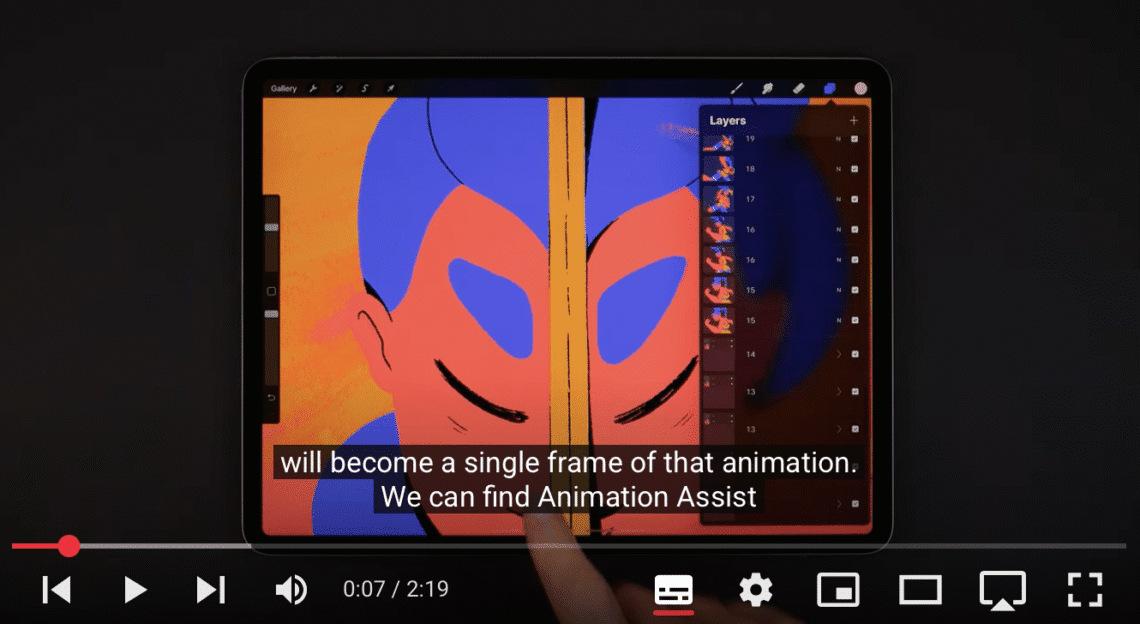
Procreate – How to use Animation Assist in Procreate
Procreate – How to use Animation Assist in Procreate Create living artworks with Animation Assist in Procreate. Please support us TheAppWhisperer has always had a dual mission: to promote the most talented mobile artists of the day and to support ambitious, interested viewers worldwide. As the years pass, TheAppWhisperer has gained readers and viewers and has found new venues for that exchange. All this work thrives with the support of our community. Your support helps protect our independence, and we can keep delivering open, global promotion of mobile artists. Every contribution, however big or small, is valuable for our future. Click here to help us